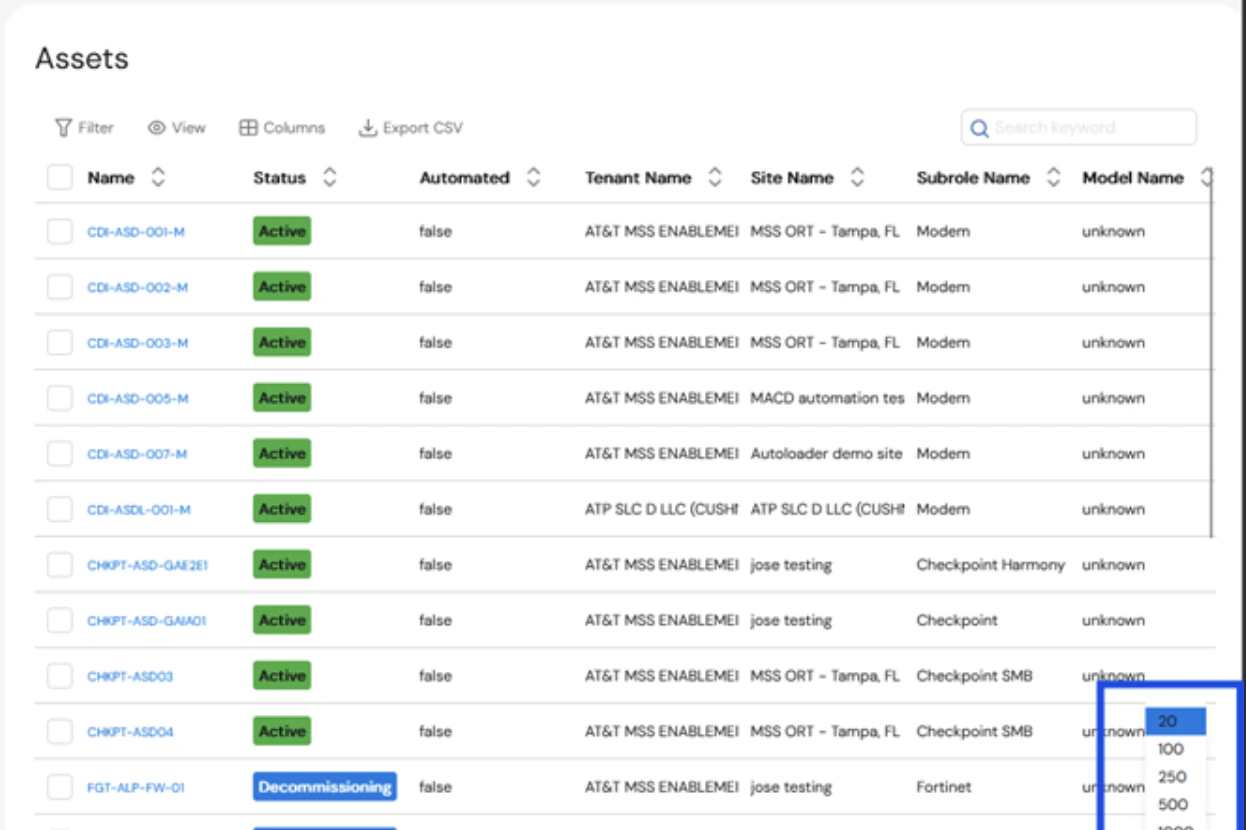
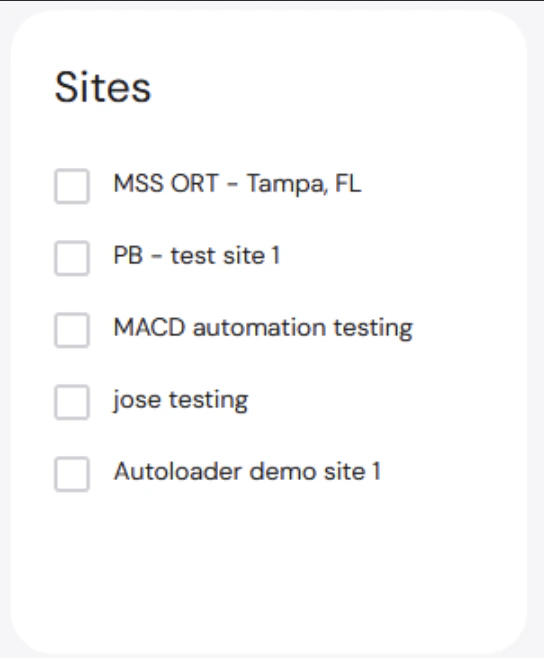
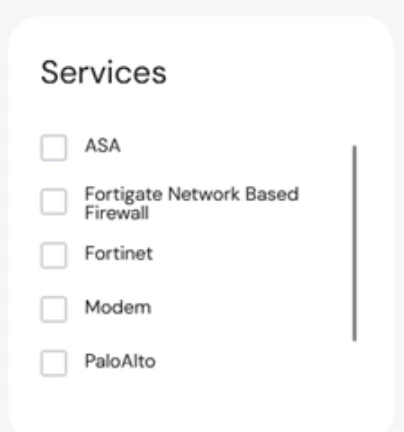
A user can filter on the left-hand side by both Site and Services. A user can select one or many sites and services to filter the table. For more information on a specific Asset, click on the Asset Name and you will be taken to the Asset Info tab on the Manage page.Documentation Index
Fetch the complete documentation index at: https://levelblue-final.mintlify.app/llms.txt
Use this file to discover all available pages before exploring further.
Filter
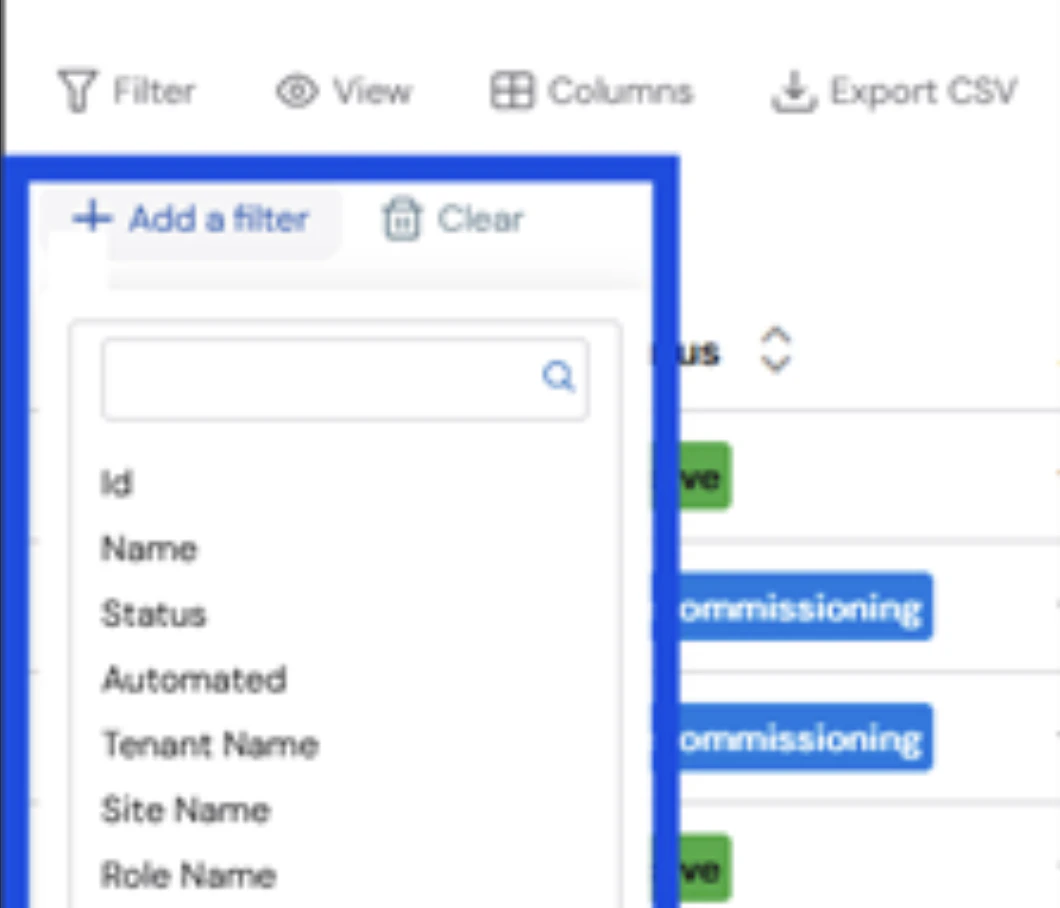
To narrow down the Assets even further, the user can apply a filter to the table.
Click on the “Add a Filter” button, and a list of fields will appear, including ID, Name, Status, Site Name, and more.
Views
A user can select from different pre-defined views, including OS Upgrades.
Columns
A user can add or remove columns from the table.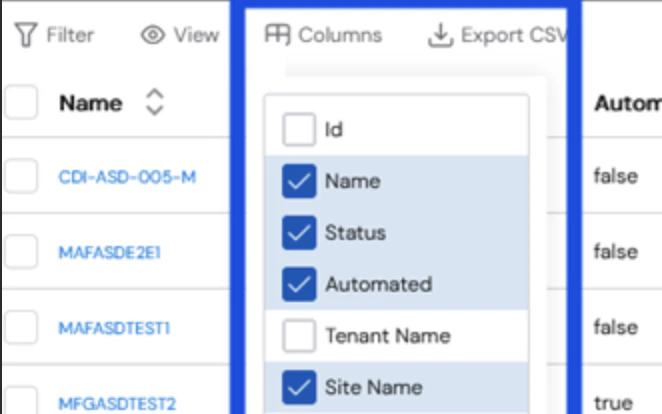
Export
A user can Export the current view of the Asset table. Note: The export will include whatever is displayed on the screen when the Export button is pressed.- To change the columns on the export, use the Columns button before exporting the table.

- To change the number of Assets on the export, change the number at the bottom of the table.