To add a USM Appliance deployment connection to a USM Central instance, you must initiate a connection from the USM Appliance web UI. The connection request from a USM Appliance deployment requires a token that you generate in the USM Central instance.
Version 5.4.3 or later is required to add a USM Appliance deployment connection. Port 443 must be open between a USM Appliance and a USM Central instance.
To generate a token for a USM Appliance connection
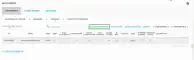
In USM Central, go to Settings > Deployments.
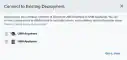
Click Connect to Existing Deployment.The Connect to Existing Deployment dialog box opens.
Click the icon next to USM Appliance.
Enter a name for the deployment that you want to connect.
Click Generate Token.
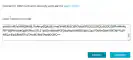
Click the icon to copy the token to your clipboard.
Paste the token into a secured file and send it to the user that is responsible for the USM Appliance deployment.
Click Got it, close.
To initiate a connection to USM Central from USM Appliance
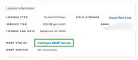
In the USM Appliance web UI, go to Configuration > Deployment > Components > Servers.
Click the Connect to USM Central link.
Enter the token generated from USM Central.
Click Connect.The system sends a request to the USM Central.Upon acceptance, your USM Appliance deployment is automatically connected.
To view other related training videos, click here.
USM Appliance and USM Central enable you the option of disconnecting a connection.To disconnect a connection from the USM Central web UI
Go to Settings > Deployments.
Click the icon.The Disconnect Deployment dialog box opens.
Choose one of these options:
Yes, disconnect deployment and purge all data: Use this option to disconnect the deployment and purge all historical data.
Yes, disconnect deployment BUT DO NOT purge all data: Use this option to disconnect the deployment. Alarms remain and your USM Anywhere shows them in the alarm list. The alarms are available if you connect the deployment again.
No, do not disconnect: Use this option to exit this dialog box without disconnecting the deployment.
To disconnect a connection from the USM Appliance web UI
In the USM Appliance web UI, go to Configuration > Deployment > Components > Servers.
Click Disable Connection.The Connection to USM Central dialog box opens.
A dialog box opens.
Click Yes, Disconnect.
Assistant
Responses are generated using AI and may contain mistakes.


 icon next to USM Appliance.
 icon to copy the token to your clipboard.

 icon.
The Disconnect Deployment dialog box opens.
icon.
The Disconnect Deployment dialog box opens.